Apple CarPlay users can receive speed camera warnings through compatible third-party navigation apps, though the system itself acts only as a messenger without built-in alert features, according to Engadget.
While Apple CarPlay users default to Apple Maps, alternative applications such as Waze and Google Maps provide options to track speed traps and cameras on the road. Because mobile speed detectors move around frequently, users must rely on reports from other drivers to receive real-time warnings about new positions.
Navigation apps handle speed and camera alerts through different menu structures. Waze turns camera alerts on by default, allowing drivers to fine-tune settings by opening Settings, selecting Alerts and Reports, tapping Reports, and choosing Cameras to adjust toggles for showing items on the map or receiving driving alerts. Users must make these changes before connecting to CarPlay, as Waze only applies them on the next drive.
Google Maps offers a similar setup, letting drivers tap Report on CarPlay to pinpoint mobile speed cameras for others. To receive alerts from fellow drivers, users open Google Maps in CarPlay, select Settings, go to Alert options, and choose All alerts.
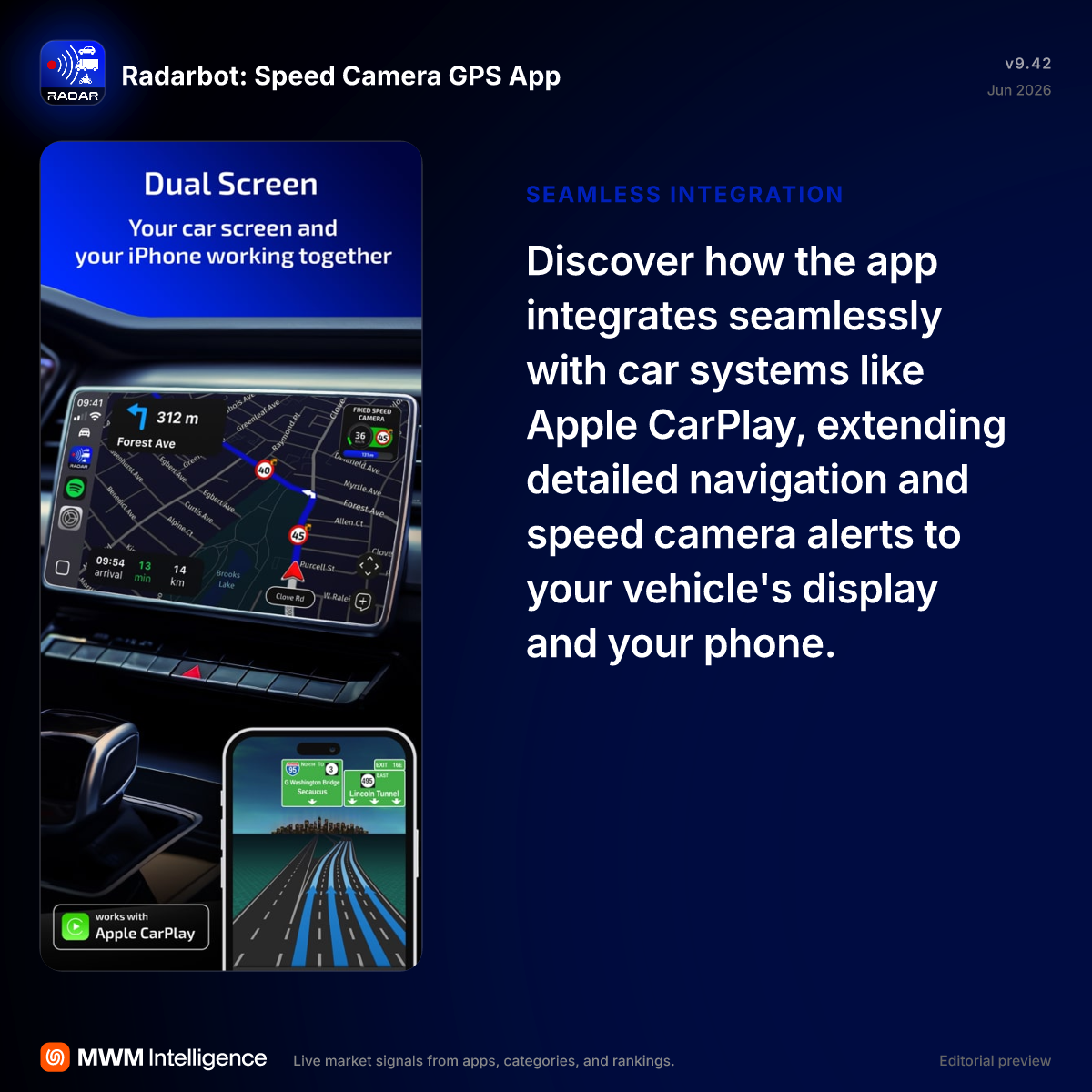
Several specialized applications integrate with CarPlay to cover specific surveillance hardware. Radarbot issues warnings for fixed and red light cameras for users with a Gold membership, while Roadar incorporates license plate readers alongside speed and red light camera alerts. Drivers focused specifically on Flock cameras can use the free application FlockHopper through CarPlay.
Speed limit displays also depend on the chosen navigation app. Apple Maps places its Speed Limit toggle inside Settings, Apps, Maps, and Driving to show posted limits on screen during navigation. Waze users can enable the speedometer by disconnecting from CarPlay, opening Waze, and navigating through Settings, Speedometer, Show Speedometer, Set Preferences, and Show Speed Limit. Google Maps places similar controls under profile settings, Navigation, Driving, and Speedometer.